Checkout · · 3 min read
Fake urgency at Shopify checkout: why it backfires
Countdown timers and fake stock warnings at checkout reopen the doubt your product page closed. Why it backfires on Shopify and what to put there instead.
By Nikita Ahapov · Updated
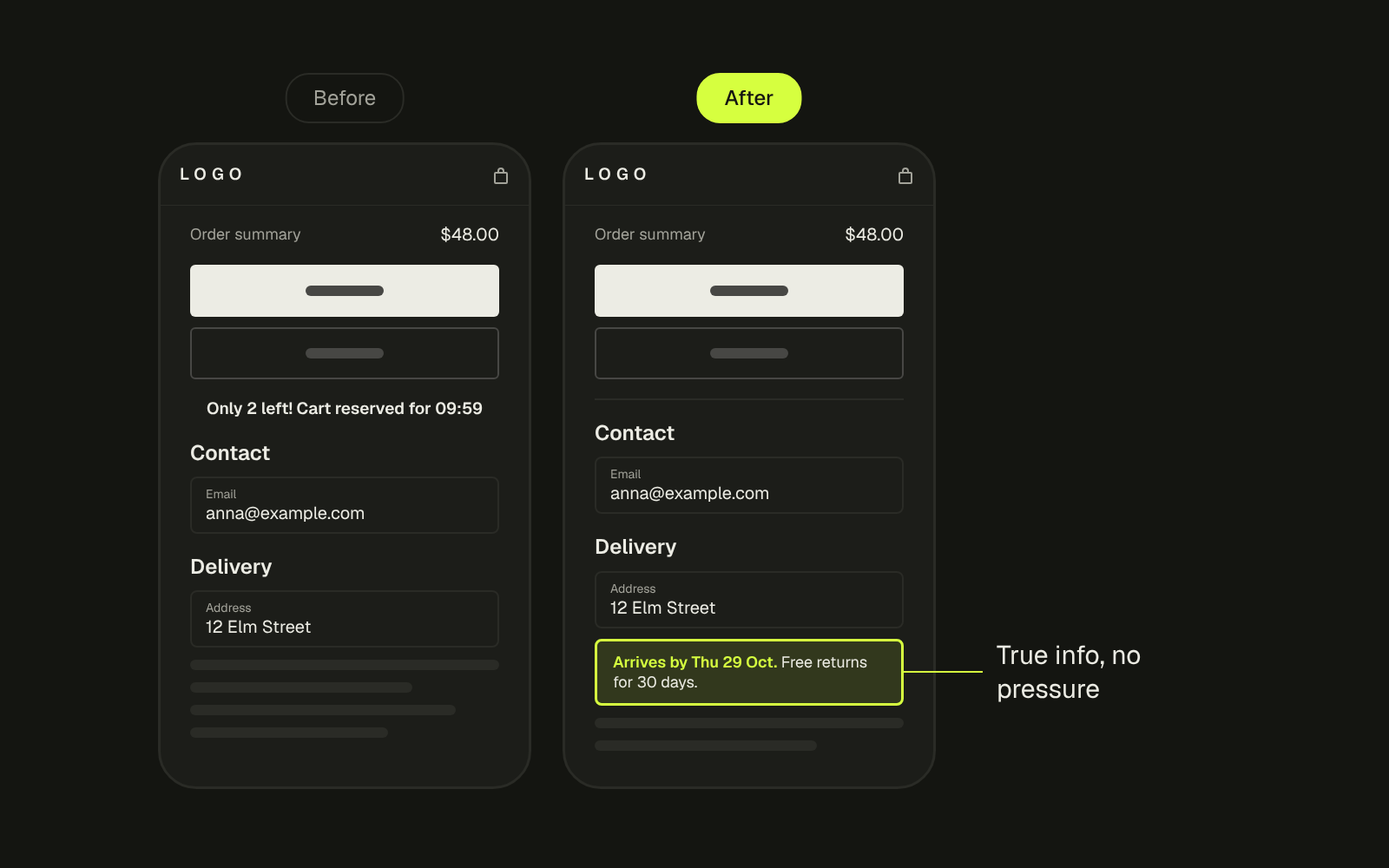
I saw this advice in my feed: “Add urgency in checkout, basically printing money.” The trick was to take the small divider under the express payment buttons and replace it with a scarcity message. Only a few left. Your cart is reserved for ten minutes.
It sounds clever. I think it does the opposite of what it promises.
The customer already decided
By the time someone reaches checkout, the hardest part is done. They found the product, picked the size, read the reviews and clicked the button. They have decided to buy.
Your only job at that step is to not break the spell.
When something feels off at checkout, people do not ignore it. They pause. They question. They leave. A timer that was not there a minute ago, or a stock warning that did not appear on the product page, is exactly the kind of thing that feels off.
Baymard keeps a running survey of why shoppers abandon checkout. Not trusting the site with card details sits on that list next to surprise costs and a checkout that is too long. (Baymard) Fake urgency does not close the sale. It reopens the doubt, at the one moment you need trust the most.
Why it is a bad idea, not just a weak one
There are two more problems beyond conversion.
It can be deceptive. In its 2022 report on dark patterns, the FTC names “countdown timers designed to make consumers believe they only have a limited time to purchase” when the offer is not actually time limited. (FTC) A message that says only two are left when you have a warehouse full is the same idea.
On Shopify you do not fully control checkout. Checkout is Shopify’s page, not your theme. Checkout UI extensions run in an isolated sandbox and have no access to the checkout page’s HTML. Extensions on the information, shipping and payment steps are only available on Shopify Plus. (Shopify dev docs) So most of these hacks are text edits squeezed into a spot that was never meant for a message. In my experience they rarely look the same on every device.
The text route has its own catch. You change checkout wording under Settings, Checkout, Checkout language, Edit checkout content. Shopify’s help notes that if your store has more than one language, you have to update the translations yourself whenever you change the default. (Shopify Help Center) Miss that and some shoppers get the fake warning while others get the original text.
How to check your own checkout
- Add a product to the cart and go to checkout on your phone, logged out, in a private window.
- Read every line above the pay button. For each one, ask: is this true for this customer, right now?
- Look for timers, stock counts, “people are viewing” lines and reserved cart messages. Check whether any of them are real.
- Repeat on a second device and, if you sell in more than one language, switch the language. Compare what you see.
- In the admin, open Settings, Checkout, Checkout language, Edit checkout content, and look for wording someone changed to add pressure.
What to put there instead
Anything that removes a doubt instead of creating one.
- The real delivery date. “Arrives by Thursday” answers the question a shopper actually has. I wrote about showing the delivery date on the product page; the same honest line works at checkout.
- The return policy in one sentence. Where the customer can see it, not in a footer link.
- Real stock, if it is real. If a size is genuinely almost gone, say so on the product page, where it helps the decision. Not at the last step.
- Nothing. A clean checkout that looks like every other Shopify checkout the shopper has used is a trust signal on its own.
What I do
When I audit a store, checkout is the page where I remove things, not add them. I take out anything that is not true, anything that moves around between devices, and anything that only exists to rush the customer. If the store is on Plus, I use extensions for useful information like delivery dates and gift notes.
If you are building a real brand, checkout is where you prove it. Keep it clean, keep it honest, keep the sale.
Want me to look at yours? Send me your store and I will tell you what on your checkout is costing you trust.