Apps · · 4 min read
How to safely uninstall a Shopify app
Unused apps still load scripts and slow your store. What to check before you click Uninstall, what to export, and how to find the code apps leave behind.
By Nikita Ahapov · Updated
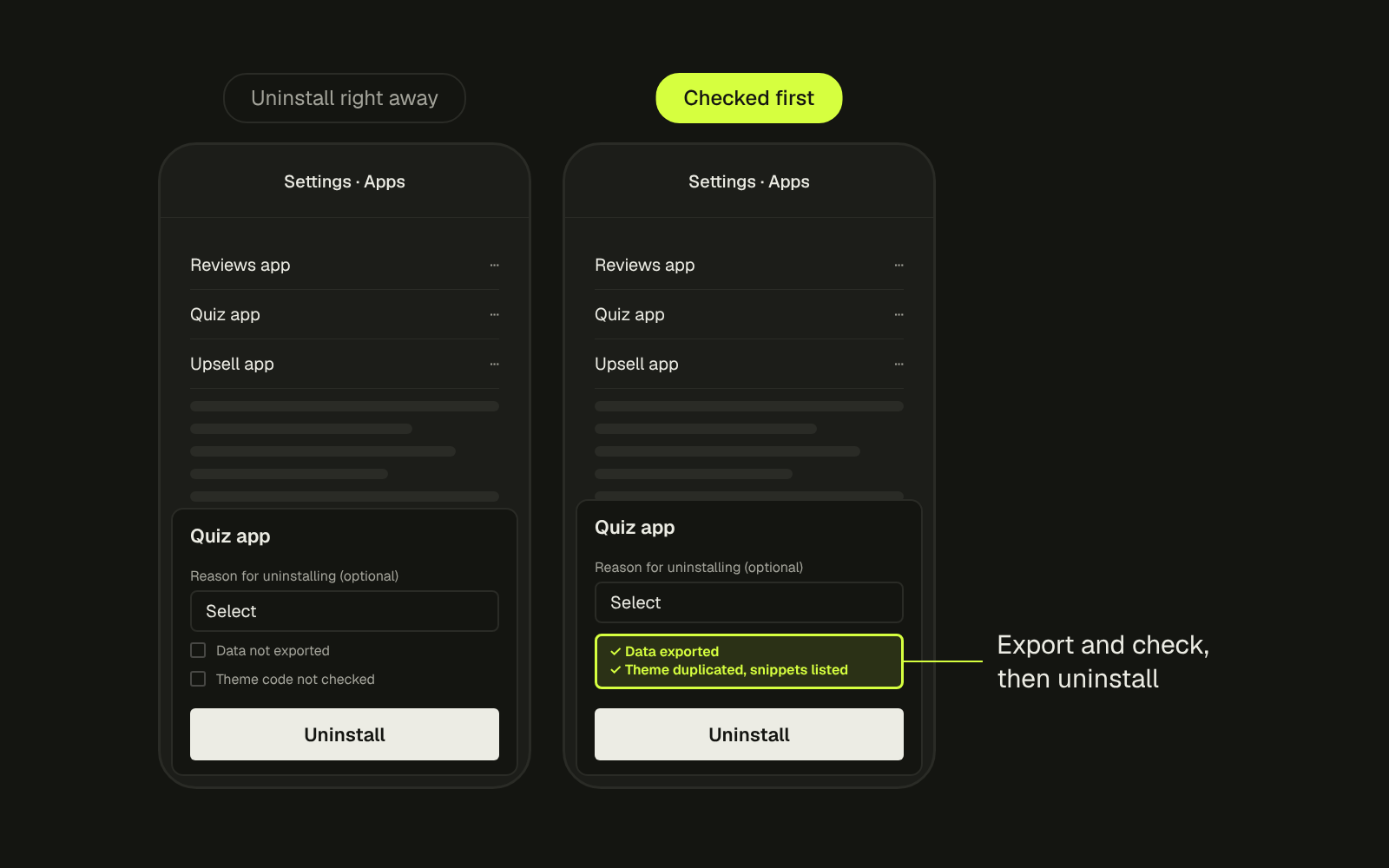
Every Shopify store I audit has at least three apps doing nothing. Still installed, still loading scripts, still slowing the store down.
The quick win is obvious: open your apps list and remove what you do not use. But uninstalling in a hurry causes its own problems. Data you needed is gone, a feature you forgot about stops working, and the app’s code stays in your theme anyway.
Here is the checklist I run before and after every uninstall.
Why uninstall is not a clean undo
Clicking Uninstall removes the app from your admin. It does not always remove what the app did to your store. Shopify’s own help page is clear on three points. (Shopify Help Center)
- Data can be lost. Some apps store data that cannot be recovered after you uninstall them, and reinstalling may not bring back your settings or data.
- Code can stay behind. Some apps add code to your theme that is not removed automatically when you uninstall.
- Things that depend on the app stop. Automations, integrations and store features built on the app stop working.
Billing is the fourth trap. Uninstalling a paid app stops future recurring charges, but you may still be billed for the current cycle. Charges billed outside Shopify are not cancelled by uninstalling at all.
Before you click Uninstall
- Write down what the app does. Not what you installed it for, what it does today. Reviews, quizzes and loyalty apps often feed other tools, for example customer tags your email flows segment on, or fields your product pages read.
- Export what you need. Reviews, quiz answers, form submissions, subscriber lists, analytics. Use the app’s own export. If it has none, ask the developer before you uninstall, not after.
- Check the app’s removal steps. Shopify recommends checking the app listing or contacting the developer for extra removal steps. If the app offers its own way to remove its code, use it while the app is still installed.
- Duplicate your live theme. In the admin, go to Online Store, open the actions menu on your theme and click Duplicate. Shopify suggests this backup so you can discard changes and start again. (Shopify Help Center) It also gives you a copy of exactly what the app had touched.
- If it is paid, ask about a refund first. Shopify says to contact the developer before uninstalling if you want one.
Then go to Settings, Apps, open the menu next to the app and click Uninstall. The reason drop-down is optional.
After you uninstall: find the leftovers
This is the step most stores skip, and it is the one that keeps the store slow.
- Open your store in Chrome, press F12, go to the Network tab, filter to JS and reload. If you still see a domain from the app you removed, its code is still there.
- In the admin, open the theme and Edit code. Search
layout/theme.liquidand thesnippetsfolder for the app’s name. - Remove the reference to the snippet as well as the snippet file itself. If you delete the file but leave the line that calls it, the page shows a “Could not find asset” Liquid error. (one app’s help page shows exactly this)
- Do this on the duplicate, preview it, check product, cart and collection pages, then publish.
I wrote about why switched off apps keep loading in more detail in Shopify apps still loading after you turn them off, including the script tag change Shopify has scheduled for March 2027.
Which apps actually slow you down
Not every app is a speed problem. Some load nothing on the storefront at all. So do not uninstall on a hunch. Look at the data.
Shopify’s web performance reports show your Core Web Vitals over time, and the chart marks changes to your store, such as app installations, theme updates and new code, as numbered lines on the graph. (Shopify Help Center) If a metric got worse right after an app went in, that app is your first suspect. Shopify notes the numbers may not move immediately after a change, so give it time before you judge.
The Network tab gives you the other half. Sort by size and match every script to an app. An app that loads a large script on every page to show something on one page is a good candidate for removal or for a cheaper alternative.
What I do
On an audit I put every installed app in a table: what it does, which pages it loads on, what it costs, and whether anything else depends on it. Each one gets one of three labels: keep, remove, or replace. Removals go through the checklist above, one app at a time, so if something breaks I know which app caused it.
Then I set a reminder to do it again every quarter. Apps pile up quietly. A trial nobody cancelled, a seasonal popup from last year, a tool a former team member tested once.
If you want me to go through your apps and theme with you, send me your store and I will tell you what is safe to remove.