Apps · · 4 min read
Trustpilot widget on Shopify: the styling rules
Restyled the Trustpilot widget on your Shopify store to match your brand? What Trustpilot's brand rules allow, how to check yours, and the safe fix.
By Nikita Ahapov · Updated
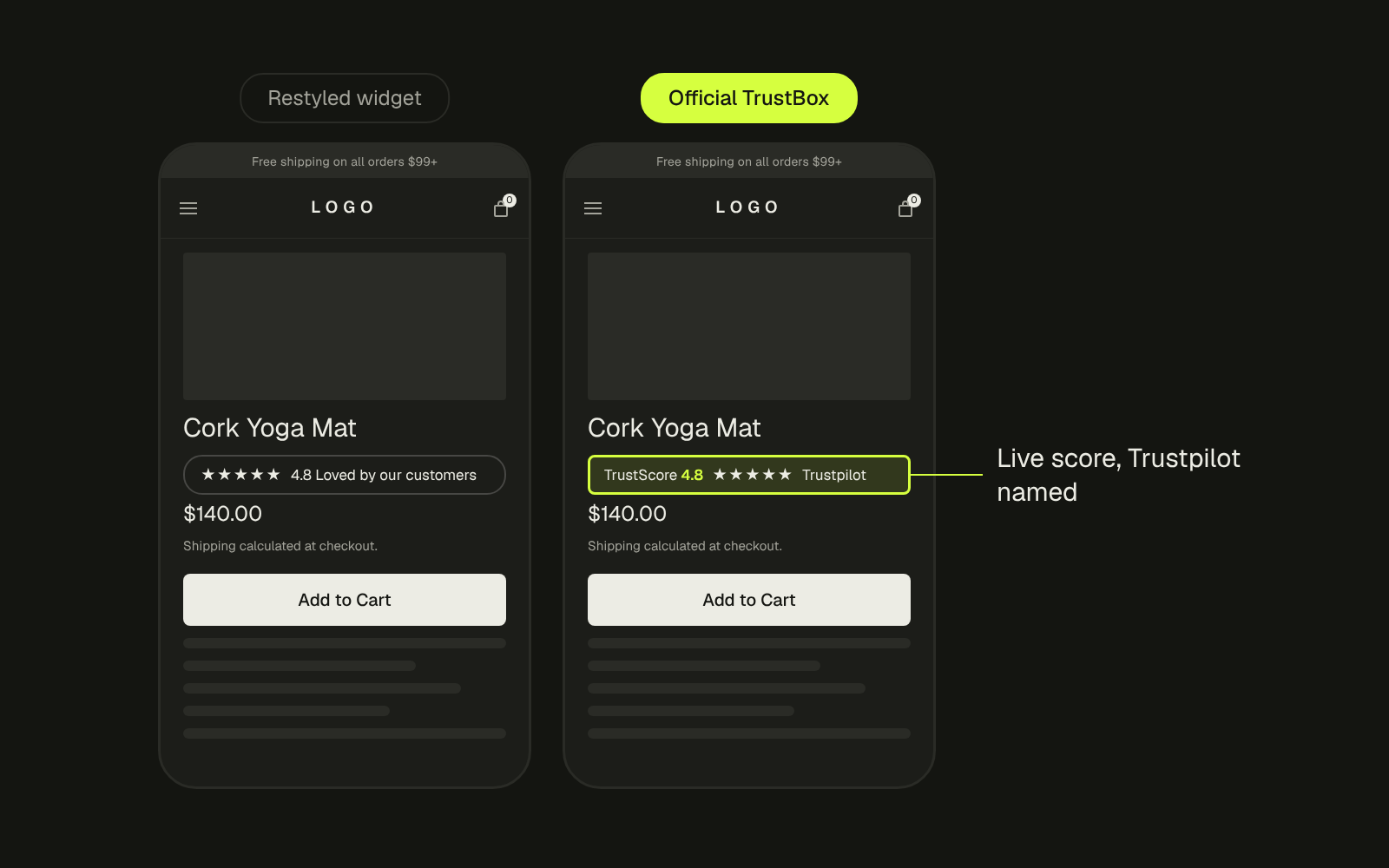
A Trustpilot widget on Shopify is one of the most common trust signals I see on product pages. And on a lot of stores it has been redesigned to match the brand. Custom colours, a stretched logo, a new layout, sometimes the Trustpilot name taken out so it looks like the store’s own rating.
It looks polished. It also breaks Trustpilot’s rules, and that can cost you the widget.
The problem with a restyled Trustpilot widget
A designer gets a brief: make the reviews block fit the brand. So the stars take the brand colour, the logo gets squeezed into a pill, and the score is copied into a nice static badge under the product title.
From the store’s side this feels harmless. It is your page, your reviews. But the stars, the logo and the TrustScore are Trustpilot’s brand, licensed to you on their terms.
What Trustpilot’s brand guidelines say
Trustpilot publishes legal brand guidelines for businesses. The parts that matter for a styled widget: (Trustpilot legal brand guidelines)
- Do not change the brand. The don’ts list includes: “Alter, amend, or make changes to our brand, including our name and logos.” The trademark guidelines say the same in legal language: no other variations of Trustpilot Designs.
- Respect the logo’s safe space. The guidelines point you to Trustpilot’s style guidance, “such as respecting the ‘safe space’ around our primary logo.”
- Make it clear the reviews come from Trustpilot. Reviews you show must be accompanied by Trustpilot’s name and logo, and you link back to your Trustpilot profile page.
- No static images. A static image of your TrustScore or Star Rating on your website is listed as misuse, and so is content that is not up to date. A screenshot of last spring’s score counts.
- Say TrustScore. When you show the number, the word “TrustScore” goes next to it.
- Only official widgets. You may not use unauthorised widgets or applications to display Trustpilot content, and a TrustBox widget that is not included in your plan is misuse too.
What happens if Trustpilot flags it
Trustpilot’s Action We Take page lists the steps: educational emails, warnings, and a Consumer Alert or Consumer Warning on your Trustpilot profile. If appropriate, legal action. Under a Consumer Warning the business can no longer display the Trustpilot brand or use TrustBoxes.
So the worst case is not a polite email. It is a warning on your public profile, at the moment shoppers go there to check you.
Trustpilot widget customization: what you can change
You are not stuck with one look. Trustpilot’s TrustBox page says you can customise widgets by size, colour and trust signals, choose light or dark versions, and set the width and height for your page. All TrustBoxes are responsive.
That is the line. Change the settings Trustpilot gives you inside the widget. Do not rebuild the widget, recolour the logo or redraw the stars in your own CSS.
How to check your own store
- Open a product page on your phone and find every place a Trustpilot rating shows: under the title, in the reviews section, in the footer.
- Is the Trustpilot name and logo visible next to the rating? If the stars are in your brand colour and nothing says Trustpilot, it is restyled.
- Right click the rating on desktop and choose Inspect. If the rating is an image file or plain text typed into your theme, it is static and will go out of date.
- Click it. It should take the shopper to your Trustpilot profile.
- Search your theme’s CSS for “trustpilot”. Overrides on the widget or the logo usually live there.
How to add a Trustpilot widget to Shopify the right way
Take your widget from Trustpilot, not from a design file. TrustBox widgets are available to every business with a Trustpilot Business account, free or paying, but which widgets you get depends on your plan. Trustpilot also has its own Shopify app, with a free plan, that adds a review widget without code.
Then style around it, not inside it. Give the TrustBox room, align it with your buy box, pick light or dark to suit the page, and set the size. If the widget looks out of place, the fix is usually the spacing around it.
When you remove a restyled version, check the theme for leftover code. Old review snippets keep loading long after nobody uses them, the same way apps still load after you remove them.
What I do
On a product page audit I check the review widgets the same way I check any app: what loads, where it shows, and whether it follows the provider’s rules. If a widget was restyled, I put the official one back and design the space around it so it still fits the brand.
My rule of thumb: if you want Trustpilot long term, do not design around it. Use the official TrustBox and let your page do the styling.
If you want a second look at your product page, send me your store.