Apps · · 4 min read
Shopify bulk add variants: a new size on 200 products
Shopify bulk add variants without a risky CSV: how to put a new size like XXL on hundreds of products, set stock and SKUs, and preview it first.
By Nikita Ahapov · Updated
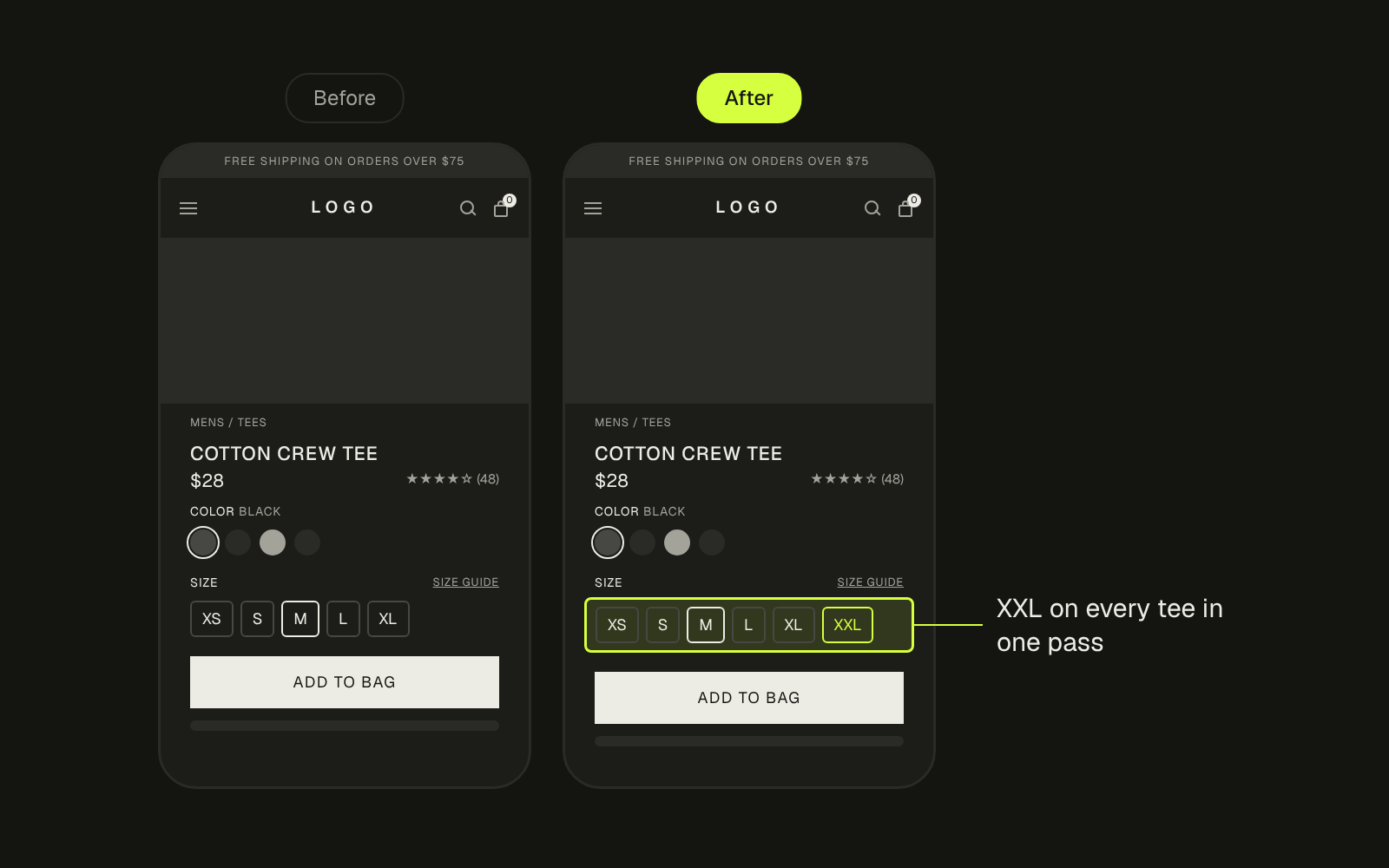
If you searched for Shopify bulk add variants, you are doing the job I see merchants run most in the app I build, and it is not what I expected. It is not renaming or price changes. It is adding a new value to an option across many products. A new size, XXL, on 200 t-shirts. A new colour on a whole collection.
It sounds like a five minute task. On a real catalogue it is a day, and the fast way to do it is also the easiest way to break things.
The problem
You decide to sell XXL. Now every tee, hoodie and sweatshirt in the range needs it, with its own stock, its own SKU and the same spelling everywhere. Miss a few products and shoppers who need XXL find it on one tee and not on the next. That reads as out of stock, or as a store that does not carry their size.
How to add size variants in Shopify, one product at a time
Shopify’s own route works per product. You open the product, click Edit next to the option in the Variants section, type the new value in the “Add another value” field, click Done and then Save. Then you add the price, quantity, SKU and other details for each new variant. (Shopify Help Center)
For one product that is fine. For 200 it is 200 rounds of open, add, set stock, set SKU, save. Somewhere around product 60 someone types xxl or 2XL, and now your Size filter has two values for the same thing. I wrote about that mess in fixing variant names in bulk.
The bulk editor does not get you out of it. Shopify describes it as the way to change the details of multiple variants at one time, while adding options and values is described on the product itself. (Shopify Help Center) So it helps with stock and SKUs once the variants exist, not with creating them.
Why the CSV route goes wrong
A product CSV import can add the new variants to every product in one go. It is also where I have seen the worst damage, because the file overwrites what is already there. Shopify’s CSV guide spells out the traps:
- If you update products and leave out the Option1 name and Option1 value columns, a new default variant is created and your existing variants are deleted.
- Changing data in the Option value column deletes the existing variant IDs and creates new ones.
- A blank cell in a column you included overwrites that value as blank.
- The Inventory quantity column is only for stores with a single location. With more than one, stock goes through a separate inventory CSV.
So one wrong column and you are fixing hundreds of products by hand, often after orders have already come in on the broken ones.
How to check your own store before you start
Before any tool touches the catalogue, I answer five questions and write them down.
- Which products get the new value. Filter the product list by type, collection or vendor and check the count. Products that never come in XXL stay out.
- Check the option name on each. The value goes under an option, so the option has to be called the same thing everywhere.
Sizeon most products andsizeon a few means you clean names first. - Starting stock, and at which location. Zero is a safe default, but decide it. If you stock more than one location, decide where the new variants start.
- The SKU pattern. Pick it once, for example the existing SKU plus
-XXL, so the warehouse can read it without a lookup. - Check the limits. A product can have up to three options and up to 2,048 variants. (Shopify Help Center) Products with many colours and sizes get large fast.
Add variants to multiple products at once
With those answers written down, the job is mechanical. Pick the products, add the value, set stock and the SKU pattern, preview the result, apply. The preview is the step that matters. You see, product by product, how many new variants each one gets before anything is written, and a product that would get 12 when you expected 1 stands out.
That is the flow I built into PS: Bulk Variant Editor. It adds new option values or a whole new option to many products, sets starting stock on the new variants, generates SKUs from a pattern, and shows a preview of every change before you apply it. (Shopify App Store) It has a free plan with every feature, so you can try it on a small range first.
What I do
On a client store I never start with the tool. I start with the list: which products, which option name, what stock, which SKU pattern. Then I run the change on a handful of products, check them on the storefront and in the Size filter, and only then do the rest.
If your catalogue needs a new size before Black Friday and you would rather not touch it yourself, send me what you sell and I will tell you how I would do it.