Theme development · · 4 min read
Shopify site search best practices
Shoppers search with their own words, on a phone, and leave when search gives them nothing. How to test your Shopify search and fix the gaps.
By Nikita Ahapov · Updated
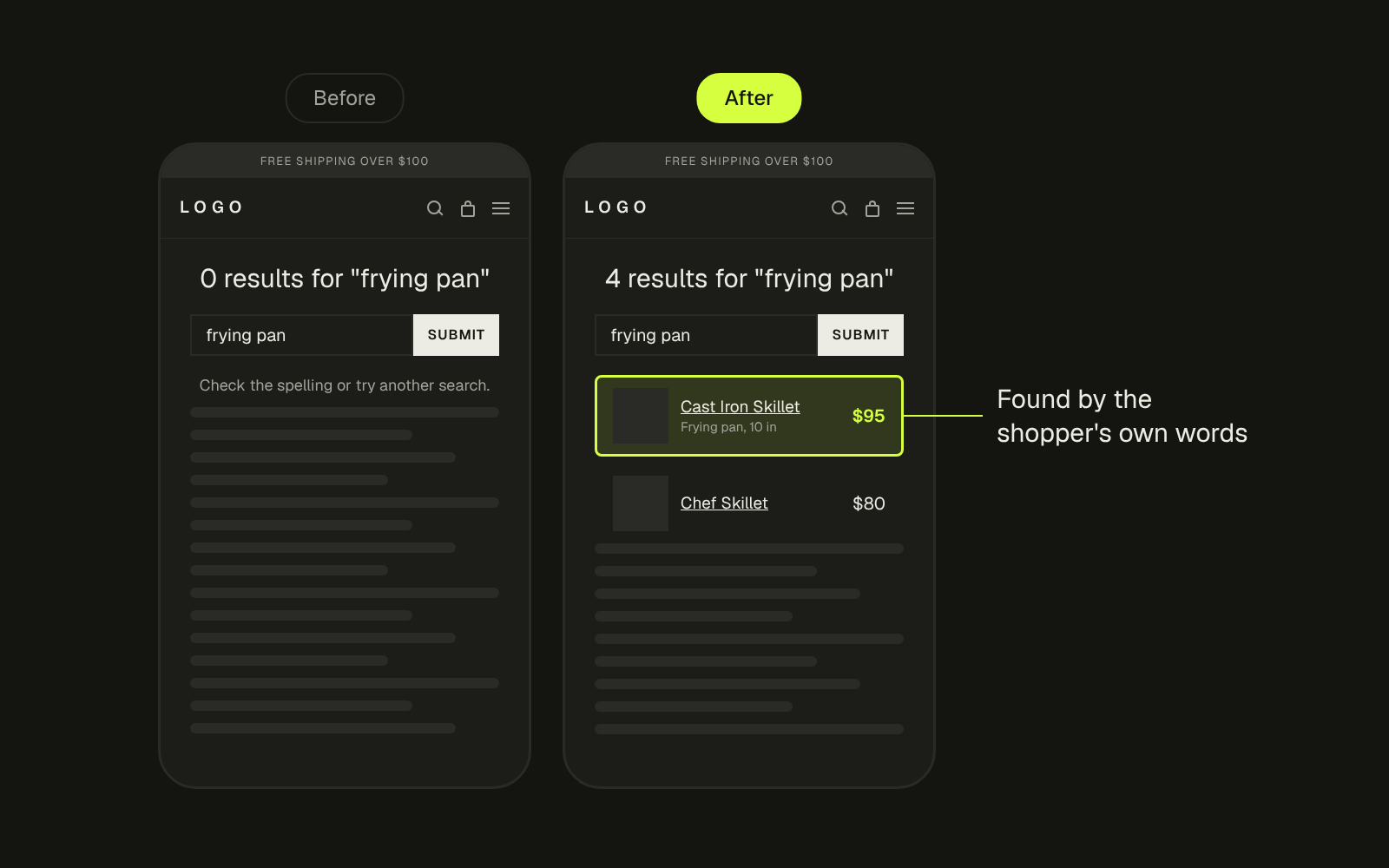
Most stores treat on-site search like a settings toggle. You flip it on once and forget it.
But a visitor who searches is telling you exactly what they want. If they get nothing, or junk, they leave faster than from any other page. On mobile it is worse: search is half hidden behind an icon, and the results page was never designed for thumbs.
What I keep seeing
On audits the same four things come up.
- The default results page. No filters, no previews, products listed the way the theme shipped them.
- Copy without the shopper’s words. A shopper types “merino wool crew neck”. The product is called “The Henley” and the description never says crew neck. Search has nothing to match.
- Search behind a tap on mobile, with no suggestions while typing.
- Dead end zero result pages. One line saying nothing was found, and nowhere to go next.
Why it happens
Search can only match what is in your catalog. Product titles, descriptions, types, tags and collections are the raw material. If your brand names products creatively and the copy never uses the plain word, the plain word finds nothing.
Shopify does help here. Its help center says semantic understanding is included in online store search and uses related words, concepts, categories and other context to expand results, with nothing to turn on. Useful, but it is not a reason to skip the plain words in your copy. I test it on every store rather than assume.
You may also find older guides telling you to add synonym groups in the Search & Discovery app. Shopify’s current help page for search settings does not list synonyms, so check what your admin actually shows before you plan around them.
The zero result page is a design problem. Baymard’s research on no results pages found that search tips like “check your spelling” rarely help: people do not read them, and when they do they often stay stuck. What works is giving them somewhere to go: related categories, alternative searches with a preview of the top products, popular products, and a visible way to reach support.
AI agents read your catalog now too. If a person cannot find your merino crew neck by typing what they call it, an agent reading your product data has the same problem.
How to check your own store
- Write down three things a customer would actually type. Not your product names. The words from your reviews, your support inbox and your ads.
- Open your store on your phone and search for each one. Count the taps it takes just to reach the search field.
- Watch what appears while you type. Shopify’s predictive search can suggest products, collections, queries, pages and articles as you type. If your theme shows nothing, that is a gap.
- Look at the results page. Can you filter it? Can you see a photo and a price for each product?
- Search for something you do not sell and read the zero result page as a stranger would. Is there anything to tap?
How to fix it
Put the shopper’s words in the copy. Add the plain product type and the words people use to the title, description and tags. “The Henley, merino wool crew neck” finds both kinds of shopper. If you need to change names across many products, I wrote about bulk editing in Shopify.
Use product boosts for the searches that matter. In the Search & Discovery app, a product boost ranks a product higher for search terms you assign, up to 10 terms per boost. Boosts only apply to products that are available for sale.
Turn on filters for search results. Shopify’s filters work on search results as well as collections, and the standard ones (availability, category, price, product type, tags and vendor) are available to all stores. To check your theme supports them, go to Content, Menus in the admin. If it does not, Shopify shows a message in the Collection and search filters section.
Check what the results page asks for. In the app’s settings you choose which result types search returns: products, pages or blog posts, and how out of stock products show. New stores return products only. If your size guide or shipping page should come up in search, add pages.
Design the zero result page. Popular products, your main categories, and a link to chat or email. Never just one line of text.
Make mobile search easy to reach. A visible search field or icon in the header, suggestions while typing, and results with images big enough to tap.
What I do
On an audit I run the customer’s words through search on a phone, note every query that fails, and fix the cause: the copy, the boosts, the filters or the results template. Then I design a zero result page that sends people somewhere useful. If you are deciding how much to show on the product page itself, read my note on tabs vs everything open.
Want me to run your store’s search the way your customers do? Send me your store and I will tell you which searches come back empty.