Apps · · 4 min read
Shopify app support: check it before you need it
Shopify app support comes from the developer, not Shopify. How to find an app's support email and help before a sale, and what to do when an app stops working.
By Nikita Ahapov · Updated
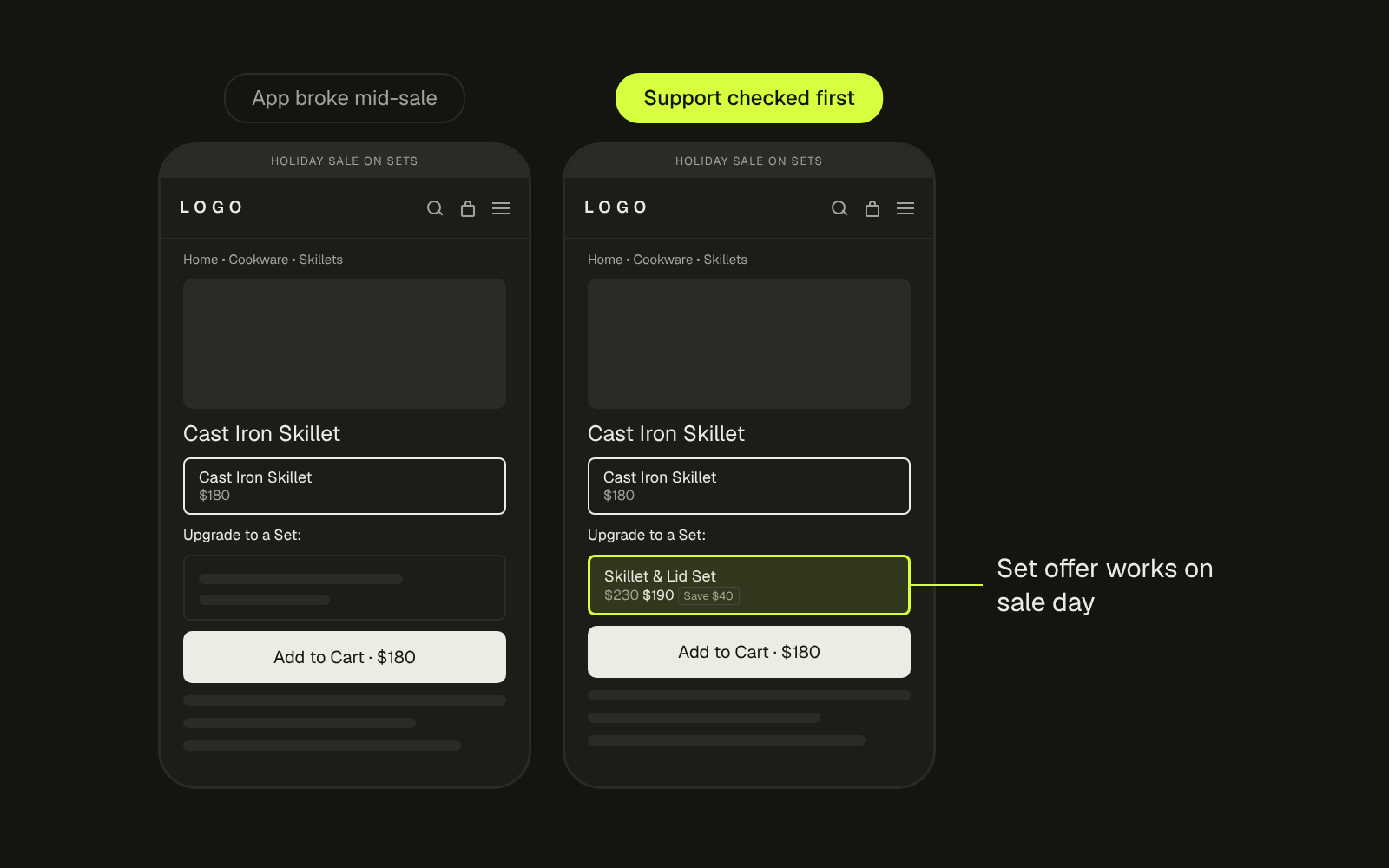
Shopify app support is something most merchants look for only once an app is already broken. That is the worst moment to find out it is hard to reach.
Support matters most when time matters. The week before a campaign. The morning the email goes out and traffic hits. The middle of a sale, when a bundle offer, a review widget or a discount stops showing and every hour costs orders. If you are searching for a contact form at that point, you have already lost time.
So my rule is simple: after installing an app, check that support is obvious. Chat inside the app, a visible support email, a help link that actually explains things. Support access is part of the product.
Why Shopify app support is the developer’s job
Most apps on your store are not built by Shopify. Shopify’s help page says it only provides support for apps made by Shopify. For everything else, the developer handles it: app errors, how to use app features, adding app code to your theme, and disputing a charge or asking for a refund. (Shopify Help Center)
That means the quality of support depends on who built the app. Shopify sets a floor. Every public app has to offer at least one support channel, a valid support email on file is always required, and developers are required to support merchants in a timely manner. (Shopify docs) “Timely” has no number attached. A floor is not the same as someone answering on a Saturday in the middle of your sale.
I build a Shopify app myself, so I know the other side too: a message with the exact page, a screenshot and what you expected is far easier to fix than “it doesn’t work”.
How to check an app’s support before you rely on it
Do this right after you install, not when something breaks.
- Find Get support in the admin. Go to Settings, then Apps. Open the menu next to the app and look for Get support. It opens a form that goes straight to the developer. If it is missing, Shopify says the app might be unlisted or the developer might not offer support in your default language. Good to know now rather than later. (Shopify Help Center)
- Open the app’s App Store listing. The Support section shows which developer provides support. The Developer section has a Website link. Some listings also link a FAQ or a tutorial under Resources.
- Open the app itself. Is there a chat, a help link or a support email you can see without digging? Click the help link. Does it explain the feature you installed the app for, or is it a page about the company?
- Send one real question. Ask something small and specific about your setup. You learn how fast they answer and whether the answer helps, while nothing is on fire.
Find the Shopify app support email before a sale
Shopify’s developer docs say a developer’s support email may be publicly visible, for example on the Shopify App Store. (Shopify docs) Do not rely on finding it in a hurry. Before a campaign, keep one short list:
- Every app that touches the storefront or checkout during the sale.
- Its support email or chat link, and the developer’s website.
- What the app does on which page, so the first message says it clearly.
It takes a few minutes, and it is the first thing to open when something looks wrong.
When a Shopify app is not working mid-sale
First, make sure it is the app. Open the page on your phone in a private window and compare it with what you saw yesterday. If an app widget is missing or showing wrong prices, check whether the app is still switched on in the theme editor before you write to anyone.
Then send the form from Get support with the page URL, a screenshot, the time it started and what changed on the store that day. Shopify’s help page says Shopify contacts you after 3 days to make sure the developer has helped, and contacts the developer again if they have not. After that, you can go to Shopify Support with the date of your original message. (Shopify Help Center)
Three days is fine for a settings question. It is not fine for a broken offer on day one of a sale. That is why the check happens before you rely on the app, not after.
If an app keeps failing and support stays quiet, replace it. Do it after the sale, and do it properly: here is how to safely uninstall a Shopify app without leaving its code behind.
What I do
On every store audit I go through the apps list and, for each app that matters on a busy day, check three things: can I reach support from the admin, is the help content useful, and did a test question get a real answer. Apps that fail all three go on the list to replace before the next campaign. The same review usually turns up widgets that get in the way, like an app button sitting on top of a sticky add to cart.
If you have a sale coming and want a second pair of eyes on which apps you can count on, send me your store.