Apps · · 4 min read
Shopify change variant name: clean up S, Small and Sm
How to change a variant name in Shopify across your whole catalogue: one spelling per size, a clean Size filter, and the duplicate variant trap to check first.
By Nikita Ahapov · Updated
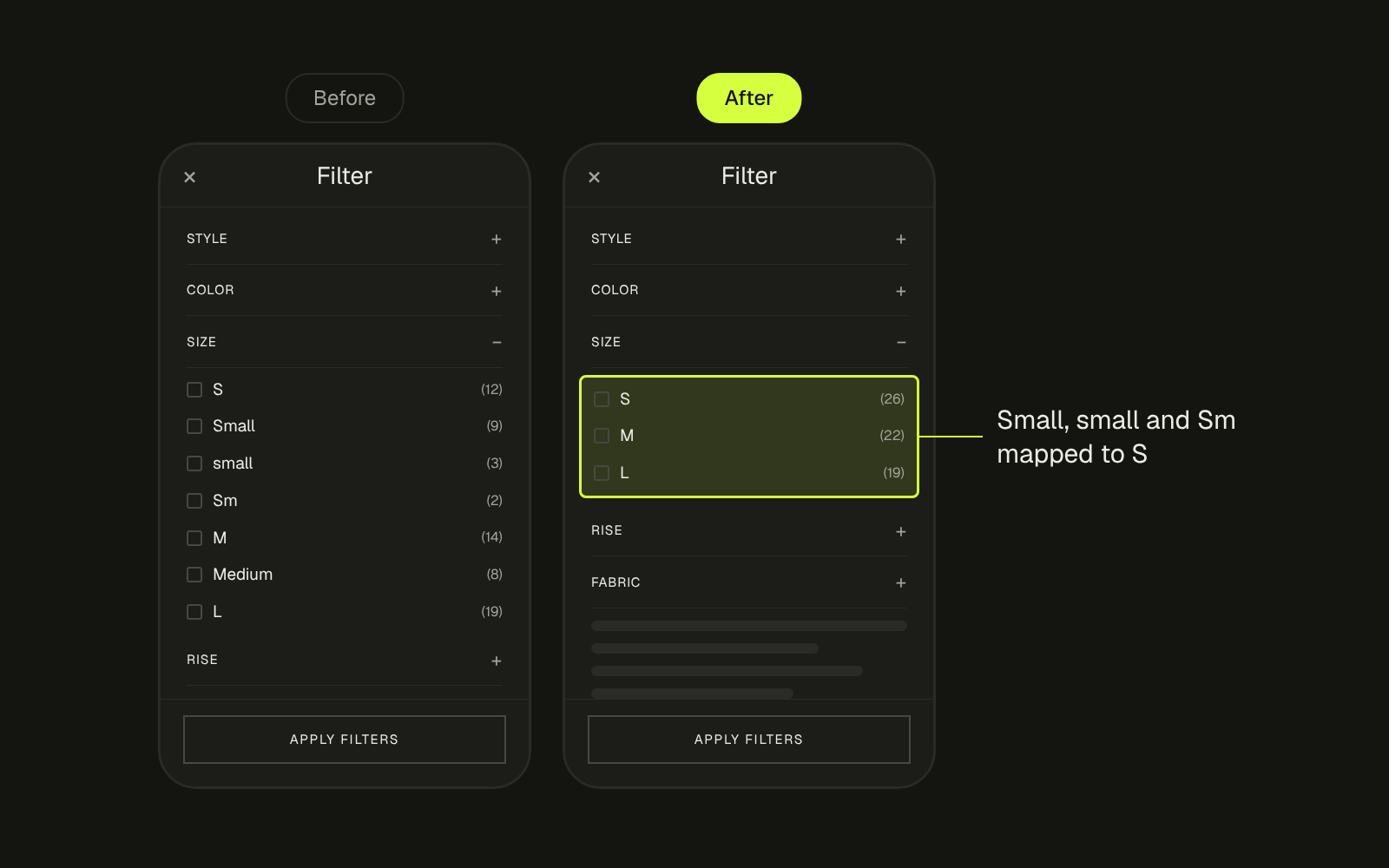
If you want to change a variant name in Shopify, start by opening your own product filters and looking at Size. If you see S, Small, small and Sm as four separate choices, your customers see that too.
A shopper who ticks S gets a fraction of your small products. The rest are hiding under three other spellings they never clicked.
The problem
It happens to every store that has been adding products for a few years. Different people, different suppliers, different spelling. One person types Small, a supplier feed says S, an old import says Sm. Nobody did anything wrong on the day. The mess only shows when you look at the whole catalogue at once, and the filter is where you look at it at once.
I wrote about why inconsistent variant names hurt before. This Note is about the fix itself, and the one trap that catches people halfway through.
Why it happens: Shopify variant option values
Every variant is made of option values. A tee has an option called Size with values like S and M, and an option called Color with values like Black. Storefront filters are built from these. Shopify says product option filters “display values based on your product variant option titles”, and asks you to check that option names match exactly across products, for example Color and not Color:. (Shopify Help Center)
So the filter is only as clean as the values underneath it. If your products say four different things, the filter shows four different things.
How to check your own store
- Open a big collection on your phone and open the filters. Read every value under Size and Color out loud. Duplicates jump out when you say them.
- Check the option names too.
Sizeon most products andsizeorSizeson a few is the same problem one level up. - Write the list down. Every spelling you found, and how many products carry each one.
- Pick one name per option and one spelling per value. S or Small, not both. Color or Colour, not both. Write that down as well.
- Look for the trap. Find products that already carry both spellings, for example a product with both
Small / BlackandS / Black. More on that below.
Shopify Search and Discovery filters: group or rename?
There is a shortcut, and it is worth knowing what it does and does not do. In the Search & Discovery app you can group several filter values so they display as one. You open Apps, Search & Discovery, Filters, pick the filter, select the values in the Values section, click Create group and give the group a name. (Shopify Help Center)
That cleans up the filter. It does not touch your products. The group lives in the filter settings, so the size buttons on each product page still say whatever the product says, Sm on one tee and Small on the next. Shopify makes the same point about renaming a filter: a new filter label does not rename the option on product pages.
Grouping is a fair stopgap before a sale. The real fix is renaming the values on the products.
How to change a variant name in Shopify
Shopify’s own route is per product. You open the product, click Edit next to the option in the Variants section, make the change, and click Save. (Shopify Help Center) The same help page describes the bulk editor for variant details, not for renaming option values across products.
For ten products that is fine. For three hundred it is an afternoon of clicking, and every manual rename is another chance to type a fifth spelling.
The CSV route is faster and riskier. Shopify’s CSV guide says that changing the Option1, Option2 or Option3 value columns deletes the existing variant IDs and creates new ones, and that any change to variant IDs can break third party dependencies on them. Reviews, feeds and apps that point at a variant by its ID are exactly those dependencies. I would not rename sizes on a live catalogue that way.
Watch the duplicate variant trap
This is the part people miss. If a product already has both Small / Black and S / Black, renaming Small to S leaves two identical variants on the same product. That cannot work: one of them has to go, and each may have its own stock, SKU and order history.
So those products need a decision before the rename. Which variant stays, where its stock comes from, and what happens to the other one. In my experience it is a handful of products, not hundreds, but they are always the ones with the most history.
What I do
I make the list first: every spelling, the one I am keeping, and the products caught in the duplicate trap. Then I rename everything at once, because a half finished rename leaves old and new spellings side by side, and that is worse than either.
I built bulk rename into my own app for exactly this. PS: Bulk Variant Editor renames option names and option values across products, and shows a preview of every change before you apply it. (Shopify App Store) You map small to S, Sm to S, Medium to M, check every product in the preview, then apply. It has a free plan, so you can try it on one collection first. If the same catalogue also needs a new size, here is how I add one to many products at once.
Then I open the filters on my phone again. That is the fastest way to see the change landed.
If you would rather hand the clean up to someone, send me your store and I will tell you how many spellings you have before anything changes.