Apps · · 4 min read
Shopify hide sold out variants, or delete them?
Shopify hide sold out variants or delete them before Black Friday? Sort restocks from dead sizes, then hide one group and bulk delete the other.
By Nikita Ahapov · Updated
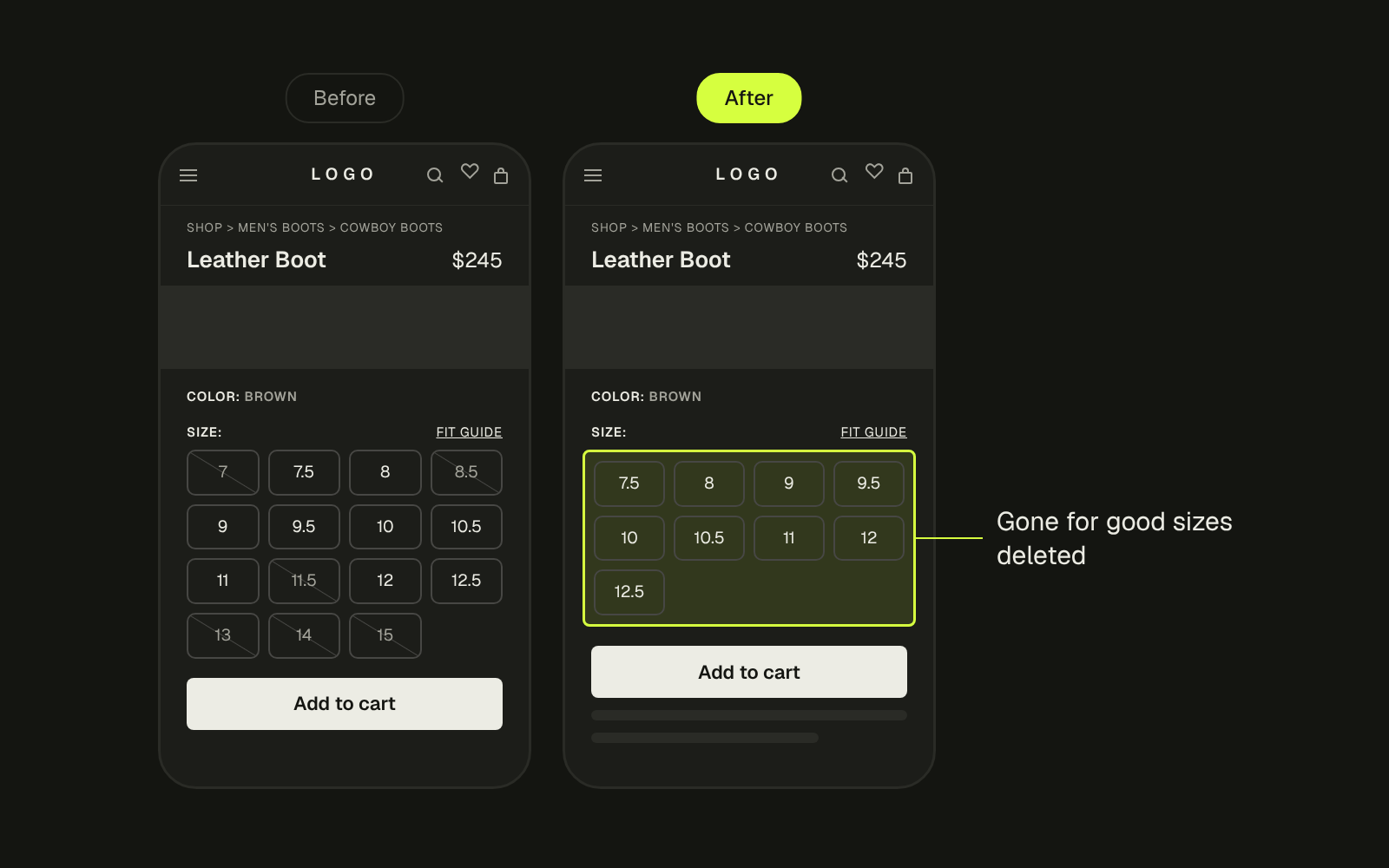
Most people who search how to make Shopify hide sold out variants are really asking a bigger question: which of these sizes are ever coming back? Black Friday traffic will land on your product pages whether they are ready or not, and this is the clean up most stores skip.
The problem
Open a product that has been on sale for a couple of years and look at the size picker. Some sizes are greyed out or crossed through. On some themes they are still selectable, and the shopper only finds out when the button says Sold out.
Every dead option is one more tap before someone finds what they can actually buy. On a phone, with a size grid of fifteen boxes and six of them dead, that is a lot of reading for a shopper who arrived from an ad and wants to know one thing: is my size there?
Why it happens
Shopify treats an item as out of stock “when inventory is tracked and the inventory level is at zero or below”. Unless you turned on Continue selling when out of stock, customers cannot buy it, and it is still shown to them as out of stock on your online store. (Shopify Help Center)
So nothing in Shopify removes a variant when it sells out. That is the right default for a size you will restock next week. It is the wrong one for a colour the supplier discontinued last spring. Shopify does not know the difference. You do.
Room is not the reason to clean up either. Shopify now allows up to 2,048 variants per product, up from the old limit of 100. (Shopify changelog) The reason is the shopper, not the limit.
How to check your own store
- Open your best sellers on your phone. Count the crossed out boxes in each size and colour picker. Note the products where more than a third of the options are dead.
- Tap a sold out size. Check what the shopper sees. Some themes grey it out, some cross it through, some let you select it and only then show Sold out on the button. The last one costs the most taps.
- Export the list. In the admin, filter your products to the range you care about and write down every variant at zero.
- Split it into two groups. Seasonal ones you will restock, and ones that are gone for good. Ask whoever does the buying, not the spreadsheet.
That fourth step is the whole job. The rest is mechanical.
Shopify hide sold out variants: unpublish the ones coming back
For the restock group, hiding is better than deleting. Shopify lets you unpublish a single variant from a sales channel. In the product’s Variants section you use the Publishing column, or select several variants and choose Manage publishing, then deselect the channels. Shopify says that when you unpublish a variant from a channel, “that variant is hidden from being displayed”. If you unpublish every variant, the whole product is hidden there until you publish one again. (Shopify Help Center)
The point of hiding over deleting is history. When Shopify announced variant publishing, it said unpublished variants stay in your admin with their history, so you do not need to delete them or duplicate products. (Shopify changelog) When the stock lands, you publish the variant again and it is back.
One caution: hiding is manual. A hidden variant does not reappear on its own when you restock it, so put a reminder next to the delivery date.
Shopify bulk delete variants: remove the dead ones
For the gone for good group, delete. Shopify’s own route per product is to click the variant and then Delete variant. To delete several at once, the same help page points you to a bulk action, and it suggests managing publishing instead if you want to keep a variant for its historical data. (Shopify Help Center)
That last line is the reason I always keep a backup first. If someone in the team later says that colour was meant to return, you want a file that tells you exactly what it was: option values, SKU, price, barcode. Then you can bring it back instead of rebuilding it from memory.
Clean option values make this easier. If the same size is spelled three ways, a sold out filter misses two of them, so fix the spelling first.
What I do
I work from the two lists, never from the storefront. Restocks get unpublished with a date next to them. Dead variants get deleted in one pass, after a backup, so the catalogue is never half cleaned when the sale starts.
In my own app this is one filter: show sold out variants, review the list, delete. PS: Bulk Variant Editor deletes variants by option value with a backup CSV, and shows a preview of every change before you apply it. (Shopify App Store) It has a free plan, so you can try it on one collection before touching the rest. If the same products also need a new size for the season, here is how I add one to many products at once.
Then I open the best sellers on my phone again and count the crossed out boxes. Fewer is the goal, not zero: a sold out size you are restocking is honest information.
If you would rather not do this the week before Black Friday, send me your store and I will tell you how many dead variants you have before anything is deleted.